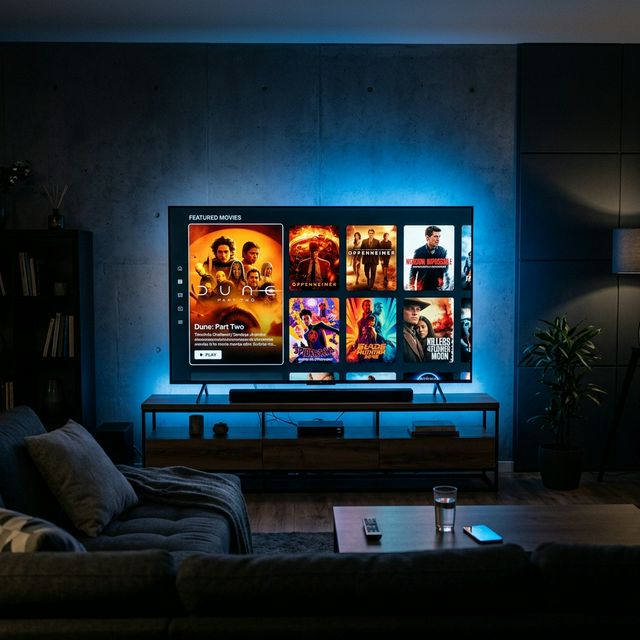
How to Install MovieBox on Amazon Firestick
Enable Developer Options on Firestick
Navigate to: Settings → My Fire TV → Developer Options. Toggle Install Unknown Apps to ON. Below this, find Downloader in the app list and enable it specifically. On some Firestick models, you see Apps from Unknown Sources instead — enable that.
On Firestick 4K Max: Settings → My Fire TV → Developer Options. On Firestick Lite/2nd gen: Settings → Device → Developer Options.
Install the Downloader App
Press the Home button. Search for "Downloader" in the Amazon App Store — it's the app with an orange icon by AFTVnews. Install it free. Downloader is the bridge that lets your Firestick download APK files from the internet.
Enter the MovieBox APK URL
Launch Downloader. Select URL (or Home). Use the on-screen keyboard to enter the MovieBox APK URL. Tip: use a URL shortener (we recommend typing just the domain from our download page) to minimize painful TV keyboard input.
Download and Install
Tap Go. The APK (~78MB) downloads — takes 1–3 minutes depending on connection speed. When the download completes, Downloader prompts you to install. Tap Install, and wait about 20 seconds for installation to finish.
Enable Streaming Mode
Use your Fire TV remote to navigate MovieBox. Find the Me tab (bottom right) → Settings → Watch → toggle Streaming to ON. After enabling, go back to the home screen and select a movie — you'll now see a Play button.
Android TV & Google TV Install
Android TV and Google TV devices (Chromecast with Google TV, NVIDIA Shield, Phillips, Sony, TCL, Xiaomi Mi Box etc.) run full Android — the same APK works. The sideload method is slightly different from Firestick.
Install a File Manager on Android TV
From the Google Play Store on your Android TV, install Files by Google or FX File Explorer. You need this to open APK files after downloading.
Enable Unknown Sources
Settings → Device Preferences → Security & Restrictions → Unknown Sources → ON. On Google TV: Settings → System → About → enable developer options first, then find Unknown Sources.
Download via Downloader or Send APK via Network
Option A: Install Downloader from Google Play on your Android TV and download the APK URL directly. Option B: Transfer the APK from your phone to your Android TV via a USB drive or a file transfer app.
Open APK and Install
Open Files by Google on your TV, navigate to where the APK saved, tap it, tap Install. Confirm any Play Protect warning by tapping Install anyway.
Samsung Smart TV & LG WebOS
Tizen OS (Samsung) and WebOS (LG) do not support Android APKs directly. MovieBox is an Android app — it can't run natively on these operating systems.
Your options:
- Connect a Firestick or Android TV box to your Samsung/LG TV via HDMI. This is the recommended approach — plug in the Firestick and use the method above. Your TV's HDMI input becomes the Android device's screen.
- Mirror from your Android phone using Samsung Smart View or LG ThinQ screen mirroring. Less ideal for a dedicated TV experience, but works without extra hardware.
- Cast from BlueStacks on PC using Chromecast built into your TV, if supported.
A Firestick 4K Lite costs $19.99 and turns any TV with HDMI into a full Android streaming device. For Smart TV users without Android TV, it's the simplest path to MovieBox on the big screen.
Firestick Tips for Better MovieBox Experience
- Add MovieBox to your home screen — press and hold in the app library → Move to Front Row. Saves navigating through the app library every time.
- Use an Ethernet adapter — Firestick has weak Wi-Fi antennas. An official Amazon Ethernet adapter ($14) dramatically improves streaming stability, especially for 1080p content.
- Restart Firestick weekly — accumulated cache slows performance. Hold Home → Restart. Resolves most random glitches.
- D-pad navigation in MovieBox — press Up/Down/Left/Right to navigate, OK to select, Back to go back. Long-press OK to see additional options on some interfaces.
- Use voice search — press the microphone button on your Fire TV remote and say the movie title. This opens Alexa voice search, which can then navigate to MovieBox.
Troubleshooting Smart TV Issues
Downloader Can't Connect
Check your Firestick's internet connection first. Settings → Network → Run Speed Test. Also verify: the APK URL is typed correctly with no spaces. Try a different DNS server if connection issues persist (OpenDNS 208.67.222.222).
Install Unknown Apps Not Found
Varies by Firestick generation. Try Settings → My Fire TV → Developer Options, OR Settings → Device → Developer Options. Tap "My Fire TV" 7 times quickly if Developer Options is hidden — same as Android developer mode.
MovieBox Crashes on Firestick
Limited Firestick storage is common culprit. Settings → Applications → Manage Installed Applications → delete unused apps. Clear MovieBox cache: Manage Installed Apps → MovieBox → Clear Cache. Then restart Firestick.
Buffering on Firestick
Try an Ethernet adapter instead of Wi-Fi. Switch to a lower resolution in the MovieBox player (720p instead of 1080p). Change server by tapping the server icon inside the player. Peak hours (8–11pm) hit servers harder worldwide.
Can't Find MovieBox After Install
Firestick doesn't always add sideloaded apps to the main row. Check Settings → Applications → Manage Installed Applications → MovieBox → Open. Or install "App Launcher" from Amazon App Store to create a home screen shortcut.
FAQ
Best Free Streaming on Your Big Screen
MovieBox on a 65-inch TV via Firestick is genuinely a great experience. The library is deep, the remote navigation works, and the ad-free streaming on a large screen is hard to beat for zero cost. Setup takes 8 minutes.
Having other issues? The troubleshooting hub has Firestick-specific fixes. Want MovieBox on your phone too? The Android guide takes 3 minutes.