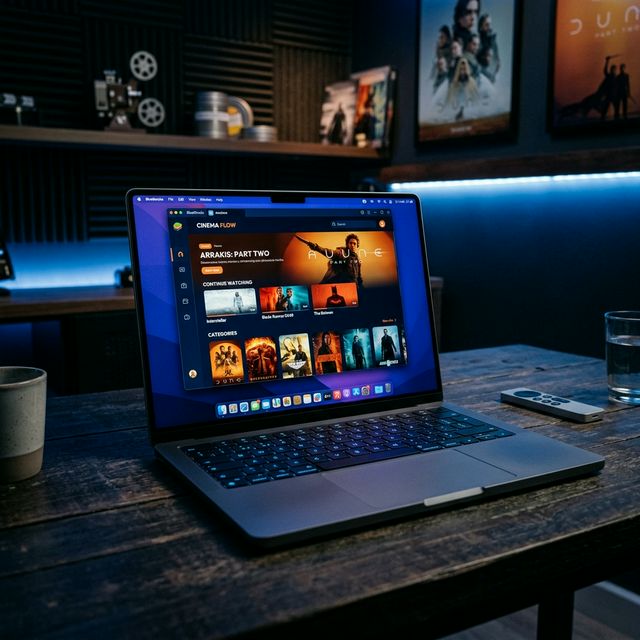
What You Need
| Requirement | Minimum | Recommended |
|---|---|---|
| OS | Windows 7 / macOS 10.12 | Windows 10/11 / macOS 12+ |
| RAM | 4GB | 8GB+ |
| Storage | 5GB free | 10GB+ free |
| Processor | Intel/AMD dual-core | Quad-core or Apple Silicon |
| Graphics | DirectX 11 / OpenGL 2.0 | Dedicated GPU |
BlueStacks vs LDPlayer — Quick Comparison
| Feature | BlueStacks | LDPlayer |
|---|---|---|
| Speed | Faster | Good |
| RAM Usage | Higher | Lower |
| Mac Support | Yes (incl. M-series) | Limited |
| Ease of Setup | Easiest | Easy |
| Free | Yes | Yes |
Method 1: BlueStacks — Recommended
BlueStacks is the most widely used and best-supported Android emulator for Windows and Mac. It's what I'd recommend for first-time users.
Download BlueStacks
Visit bluestacks.com and download the installer for Windows or Mac. The download is around 500MB. It's completely free — ignore any paid plan prompts during setup.
Install BlueStacks
Run the installer. It takes 5–10 minutes. During setup it installs a virtual Android environment. You don't need a Google account to use it for MovieBox. Let it finish completely before moving on.
Download the MovieBox APK to Your PC
Use the download button above. The APK (~78MB) saves to your PC's Downloads folder just like any regular file.
Open the APK File with BlueStacks
Navigate to your Downloads folder and double-click the MovieBox APK. BlueStacks will automatically detect it and begin the installation inside the virtual Android environment. Takes about 30 seconds.
Launch MovieBox and Configure
Find MovieBox in the BlueStacks app library and click to launch. Go to Me → Settings → Watch → enable Streaming — same step as Android. Then search for anything and start watching on your full PC screen.
Method 2: LDPlayer — Best for Older/Low-RAM PCs
LDPlayer uses significantly less RAM than BlueStacks, making it a better choice for machines with 4GB of RAM or older hardware.
Download LDPlayer
Visit ldplayer.net and download the latest version. Free to use.
Install and Launch LDPlayer
Run the installer and let it complete. Launch LDPlayer after setup finishes.
Drag in the MovieBox APK
Download the MovieBox APK to your PC. Drag and drop the APK file directly onto the LDPlayer window — it installs automatically.
Enable Streaming and Watch
Launch MovieBox from LDPlayer, enable Streaming Mode in settings, and you're set.
LDPlayer uses significantly less RAM than BlueStacks — it's a better pick if your PC has 4GB of RAM or struggles with BlueStacks lag.
MovieBox on Mac — Including M1, M2, M3
BlueStacks fully supports Apple Silicon Macs as of BlueStacks 5+. You don't need to run Rosetta or any workaround — download the macOS version directly from bluestacks.com and install it like any Mac app.
One important note: if you're on an M-series Mac, make sure you download the Apple Silicon build from the BlueStacks site — not the Intel build. Running the Intel version under Rosetta on an M-series Mac causes noticeable slowdowns and occasional crashes.
Don't use an old BlueStacks Intel build on M1/M2/M3 Macs. Download the latest macOS version from the BlueStacks site — it's compiled natively for Apple Silicon.
PC Performance Tips for Smooth Streaming
- Allocate more RAM to BlueStacks — BlueStacks Settings → Engine → set RAM to 4096MB or higher. The default 2048MB causes buffering on HD video.
- Enable virtualization in BIOS — if BlueStacks runs slowly, reboot into BIOS and enable Intel VT-x or AMD-V. This dramatically improves emulator performance.
- Use ethernet, not Wi-Fi — a wired connection eliminates Wi-Fi latency jitter that causes streaming hiccups even on fast internet.
- Go full screen with keyboard shortcut — Alt+Enter in BlueStacks toggles full screen. For a true cinema experience, pair it with your monitor on full screen mode.
- Close other apps while streaming — emulators are resource-heavy. Closing Chrome and other background apps before launching BlueStacks makes a visible performance difference.
Troubleshooting PC Issues
BlueStacks Won't Install
Enable virtualization in BIOS first (Intel VT-x or AMD-V). Also: make sure you have 5GB+ free disk space. Try running the installer as administrator.
APK Won't Open in BlueStacks
Right-click the APK → Open With → BlueStacks. Or drag the APK file directly into BlueStacks. If neither works, install BlueStacks again — first-time installs sometimes miss file associations.
Black Screen on Video Playback
Try enabling hardware decoding in BlueStacks Settings → Display → enable Hardware Decoding. If black screen persists, switch to a different server inside the MovieBox player.
Laggy or Choppy Playback
Allocate more RAM in BlueStacks Settings. Enable virtualization in BIOS. Close Chrome and other browser tabs. If still laggy, LDPlayer is often faster on lower-end hardware.
No Sound
Check that your Windows audio isn't muted. Inside BlueStacks, the volume slider in the toolbar on the right side controls emulator audio independently from Windows volume.
More issues? See the full MovieBox troubleshooting guide covering 15 problems and fixes.
FAQ
Big Screen, Free Movies, Zero Monthly Fee
BlueStacks takes about 10 minutes to set up and MovieBox installs inside it in under a minute. Once you've enabled Streaming Mode, you have a fully functional free streaming app on your Windows or Mac screen — no subscription, no ads, no account.
Need the Android install guide? Or having problems? The troubleshooting hub has PC-specific fixes. And if you want MovieBox on the big TV screen, the Smart TV guide covers Firestick setup.